DriveMate 2.5
New Features
Per User Integration Mode
Ability to switch between per-user and per-org integration modes. Now, admins can decide whether the operations on Google Drive will be performed in the context of the whole organization account, or the context of each user.
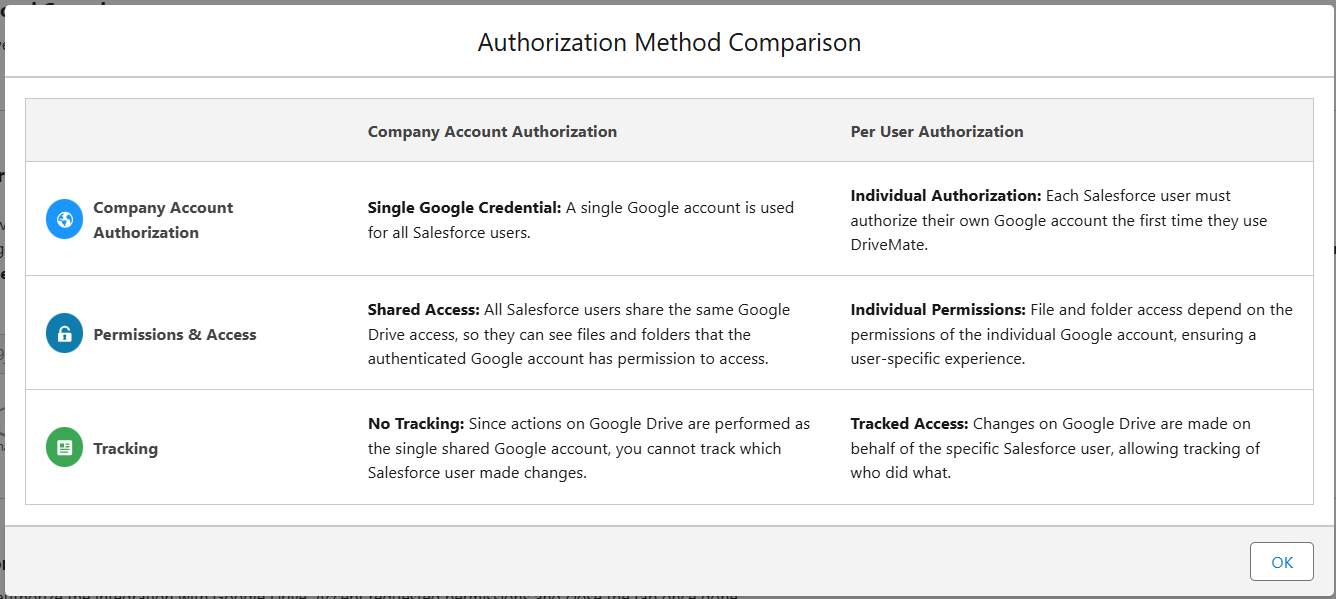

Setup Page for App Configuration
Setup page containing instructions for post-installation steps needed to configure the app.
It contains:
- Steps completion tracking
- Interactive links to Salesforce Setup Pages - to speed up the manual steps completion
- Integration metadata creation automation
- Ability to change integration credentials (client ID and client secret from Google Console app definition)
- Ability to switch between per-org and per-user integration mode
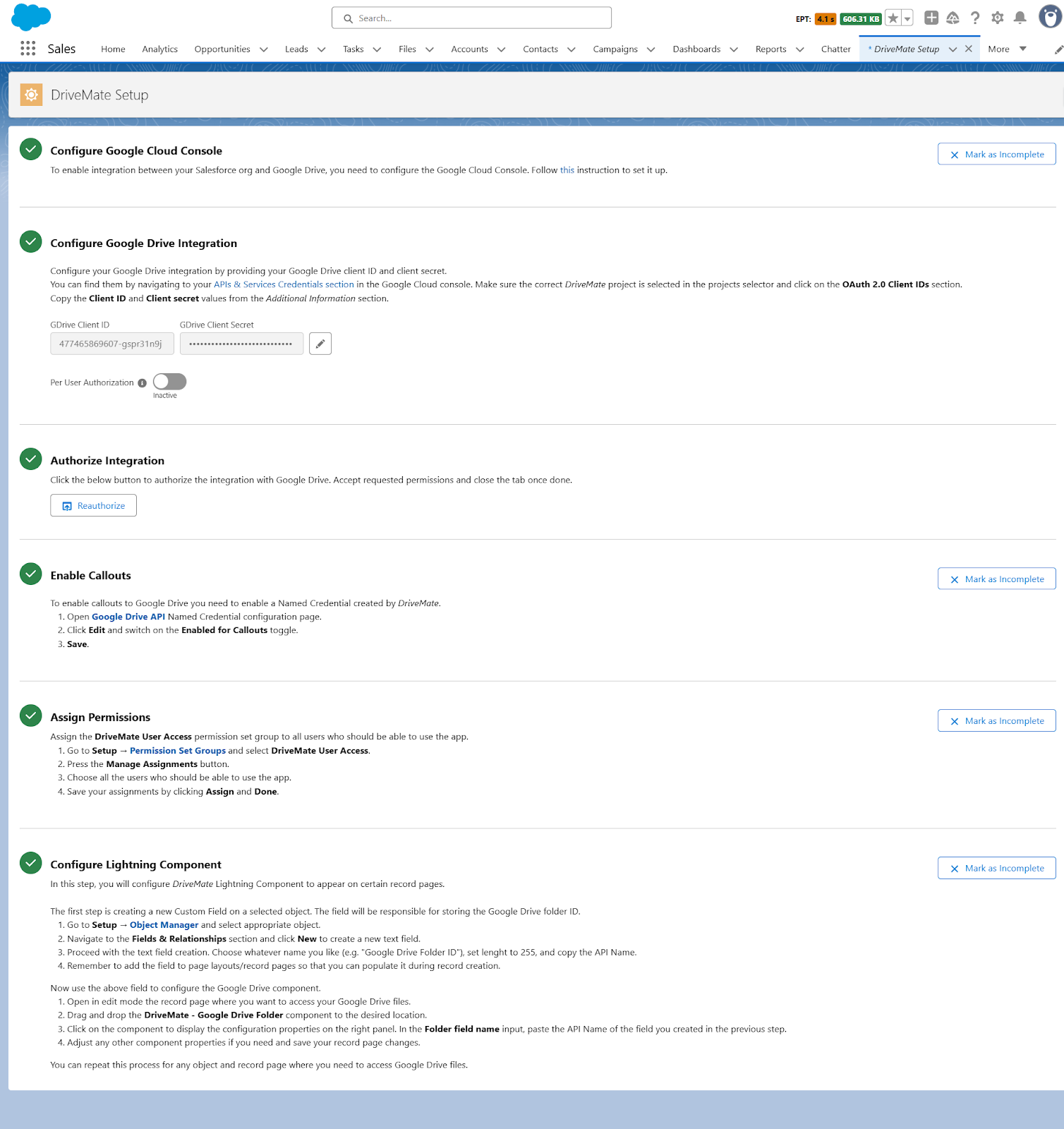
- Comparison table between authorization modes
Removed File Size Limit for Component Upload
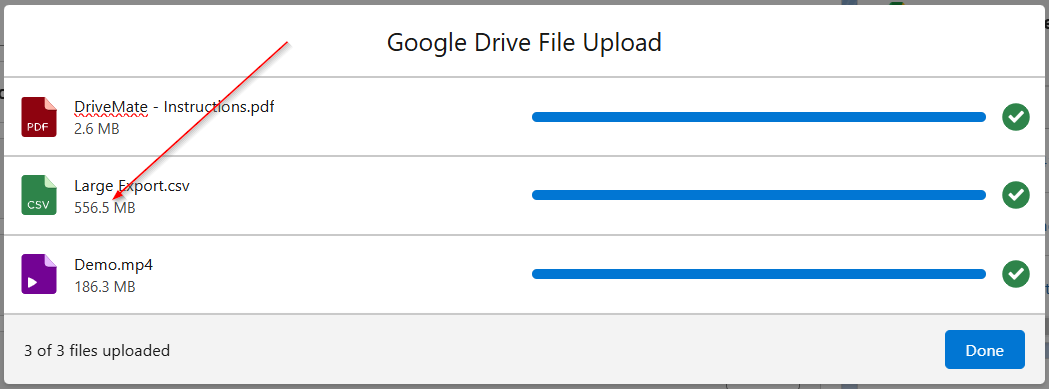
Previously, the maximum size of the file uploaded via the DriveMate component was 33Mb and it required additional configuration. All files larger than 6MB were uploaded asynchronously.
Now, the upload has been updated and there is no limit for the file size and upload is done synchronously regardless of the size.
Additionally, file uploads can be now canceled individually.
DriveMate Component Redesign and Improvements
Configurable Columns
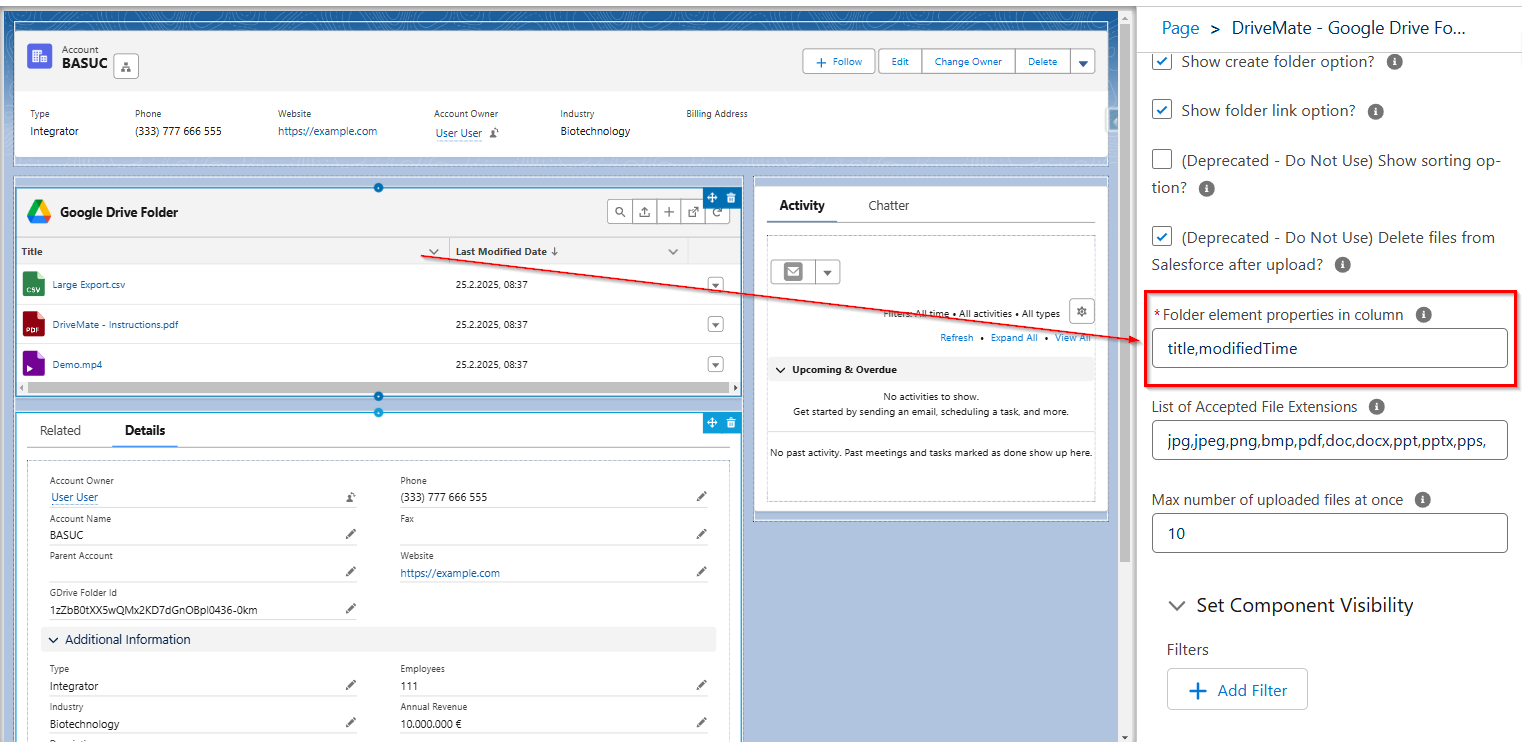
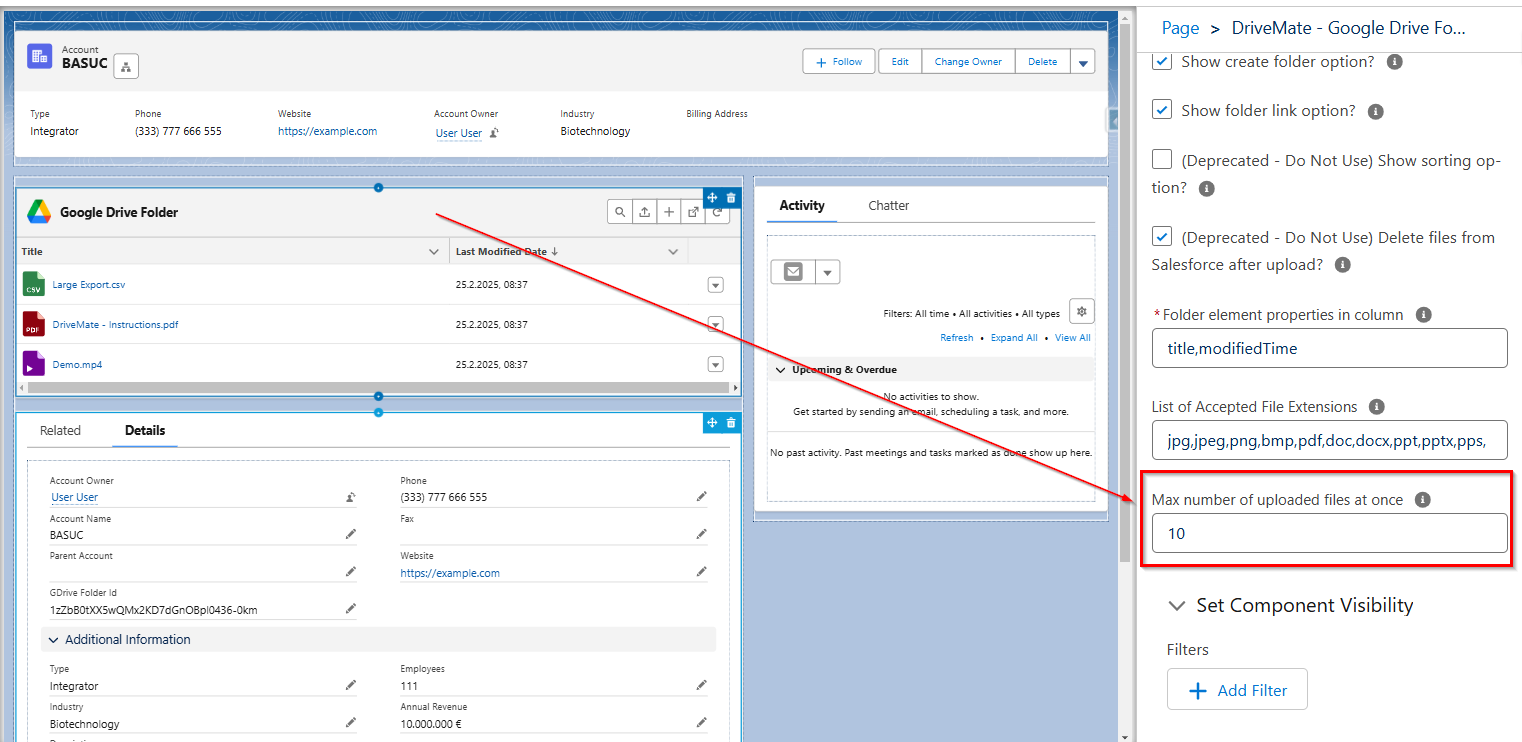
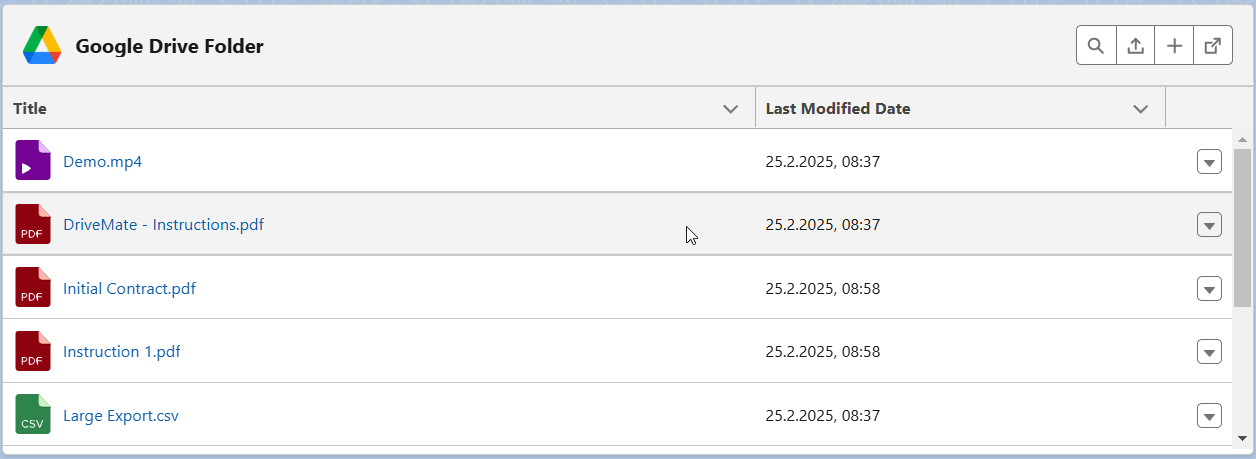
Admins can now specify the columns that will be displayed on the DriveMate component by modifying the Folder element properties in columns component attribute.
Supported columns:
- title – file/folder name modifiedTime – last modified date
- size – file/folder size
- createdTime – creation date
- fileExtension – file extension
- mimeType – mime type
Configurable Max Number of Uploaded Files
Admins can now specify how many files the user will be allowed to upload at once via the DriveMate component. This can be specified by modifying the Max number of uploaded files at once component attribute.
Additional file/folder action – open, download, move to trash
The DriveMate component supports now individual actions for files and folders.
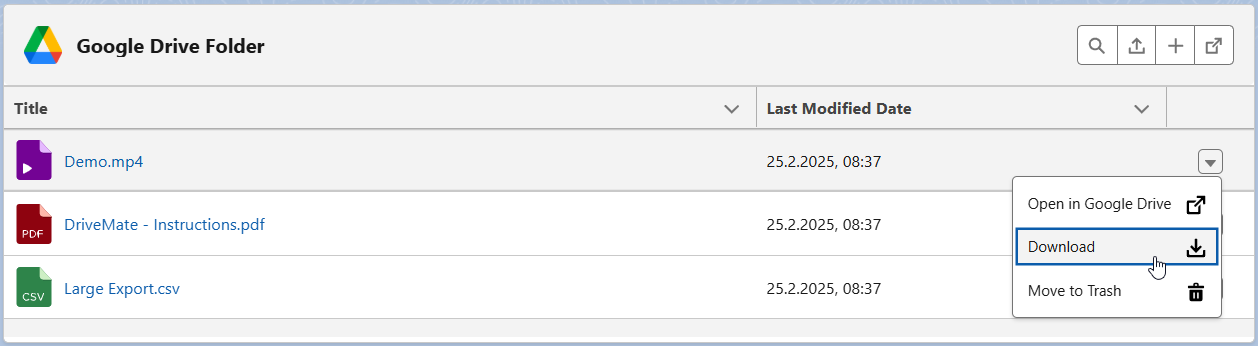
Actions available for files:
- Open in Google Drive
- Download
- Move to Trash
Actions available for folders:
- Open in Google Drive
- Move to Trash
Improved Sorting Experience
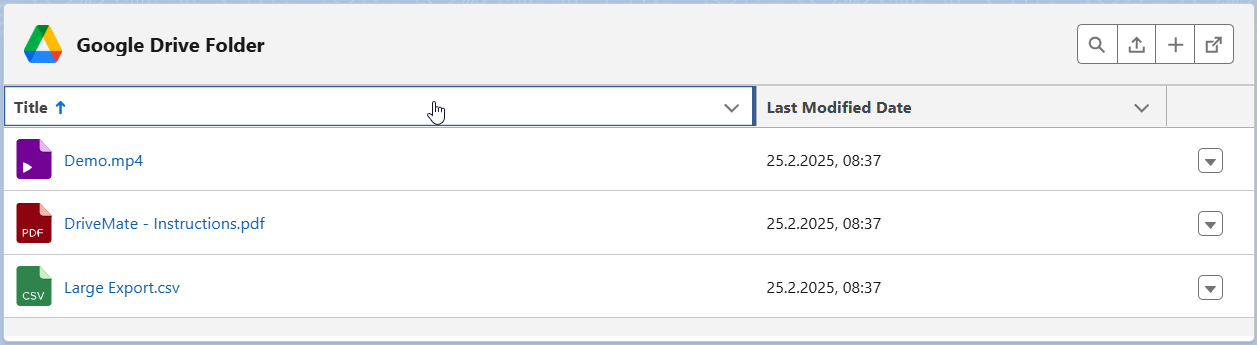
Component files and folders can be now sorted by clicking on the certain column header.
Elements can be sorted either by date fields, or by title.
Improved Search Experience
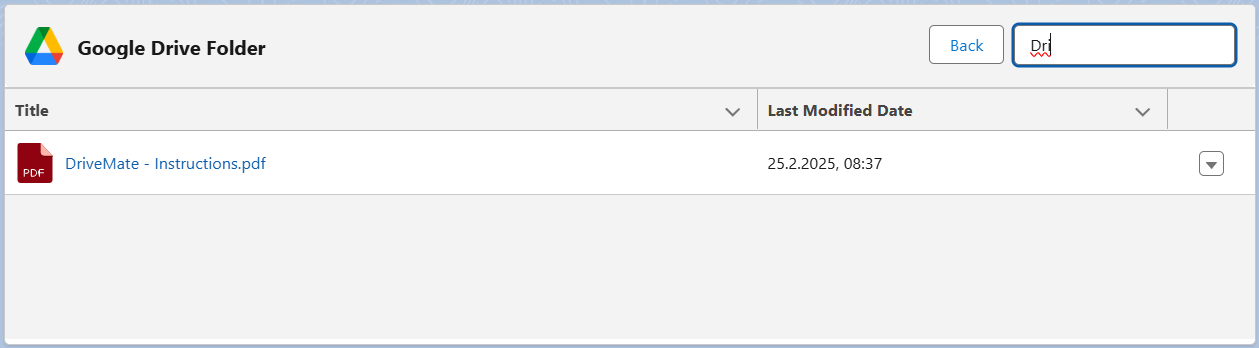
Searching of the folder elements happens now real-time as the user types in the search bar. There is no need to submit the search.
Pagination Replacement with Scroll
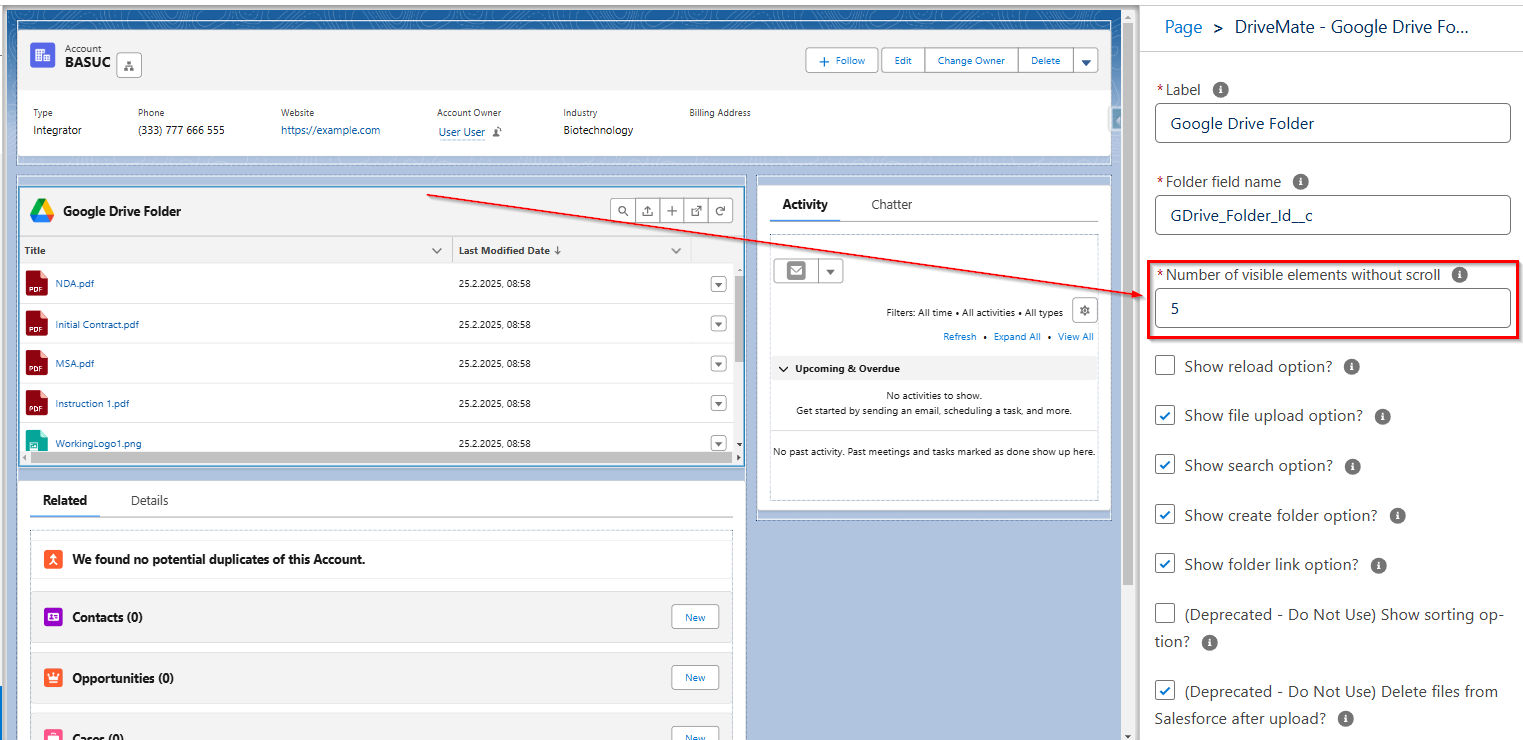
The pagination mechanism was replaced with a scroll mechanism. The attribute controlling the number of displayed elements per page was renamed to Number of visible elements without scroll.
Deprecated Component Attributes
The Show sorting option? and Delete files from Salesforce after upload? attributes are now deprecated and changing their value has no effect on the component.
Upgrade Required Actions
If you upgrade from the existing DriveMate version lower than 2.5, you will need to go through all configuration steps described on the new setup page – see details in the Setup Page for App Configuration section.
New Permission Set Group for DriveMate App Access
We introduced a new permission set group - DriveMate User Access - to grant users access to the DriveMate app. It contains the already existing DriveMate User permission set and a new one - DriveMate Integration Access.
The assignment of the new permission set group is one of the setup steps described on the new setup page.
Updated Named Credentials for Google Drive Integration
DriveMate is now using an updated version of Salesforce Named Credentials to integrate with Google Drive. This version of named credentials is a new Salesforce-recommended way of connecting to external systems. Go through the configuration steps on the setup page to set it up correctly.